A loop is one of the most useful tools on any modern DJ setup, and it is also one of the most misused. Set well, a loop lets you stretch a track's intro or outro indefinitely, build tension before a drop, rescue a too-short edit, or layer a riff into a live mashup. Set badly, it loops a clumsy chunk of music that the whole room can hear repeating. This guide goes deep on loop technique — what a loop is, the difference between auto and manual loops, loop rolls, saved loops, and the practical and creative ways to put them to work.
What a Loop Actually Is
In music, a loop is a repeating section of sound material — a section edited to repeat seamlessly when played end to end. In DJing the idea is the same but it happens live: you set a start point (the loop in) and an end point (the loop out), and the audio between those two points plays over and over until you exit. Instead of letting a track run forward, you freeze a chosen slice of it and hold it for as long as you want.
The single most important rule is that a loop should be musically timed. Because almost all dance music is in 4/4 and built from beats, bars, and phrases (covered in our Bars, Beats, and Time Signatures and Phrasing and When to Mix articles), a loop sounds seamless only when its length is a whole number of beats or bars — usually a power of two such as 1, 2, 4, 8, 16, or 32 beats. Loop a tidy four-beat (one-bar) drum pattern and the join is invisible; loop three-and-a-half beats and you get a lurching, obviously looped stutter. As Phil Morse of Digital DJ Tips puts it, looping works best when you can't tell you're listening to a loop — if it sounds looped, it isn't good.
This is what separates a loop from a hot cue or a beat jump. A hot cue jumps instantly to a saved point; a beat jump nudges playback forward or back; a loop traps playback inside a fixed region. (For cue points, see the Using Hot Cues article.)
Auto/Beat Loops vs Manual Loops
There are two ways to create a loop, and knowing when to use each is the core skill.
An auto loop (Pioneer calls it Auto Beat Loop; the slice it captures is a beat loop) is the modern standard. You choose a length measured in beats and press one button; the software instantly sets a perfectly beat-gridded loop of that length from your current position. Because it reads the track's analysed BPM and beat grid, it snaps cleanly even if your timing is slightly off. Serato's documentation explains that an auto loop creates a start point at the nearest beat and a loop end based on the chosen length, so even if you press the button slightly out of time it still creates a perfect-size loop.
A manual loop is the hands-on method: you press Loop In at the start point and Loop Out at the end point to capture a custom region on the fly. This gives you total freedom to loop any arbitrary section — a specific vocal line, an odd-length phrase, a fill — but it demands accurate timing, which is why quantize matters (more below).
The available beat lengths vary by platform but cluster around the same powers of two. On Pioneer's rekordbox, auto beat loop lengths run 1/32, 1/16, 1/8, 1/4, 1/2, 1, 2, 4, 8, 16, and 32 beats. Serato's auto loops range from 1/32 up to 32 bars. The practical lengths you'll actually reach for are small.
| Loop length | Typical use |
|---|---|
| 1/16–1/4 beat | Stutter and roll effects, build-ups before a drop |
| 1/2–1 beat | Tight rhythmic stutters, climax stutters |
| 2–4 beats | Holding a groove, quick transition cover |
| 8 beats (2 bars) | Extending a percussive intro or outro |
| 16–32 beats | Extending a full phrase to lengthen a mix window |
Here is how the two methods compare at a glance.
| Aspect | Auto/beat loop | Manual loop |
|---|---|---|
| How you set it | One press, choose length in beats | Press Loop In, then Loop Out |
| Timing demand | Low — snaps to grid | High — relies on your accuracy |
| Best for | Quick, clean loops on the fly | Capturing a specific custom phrase |
Loop Controls and Adjustment
Once a loop is running, every platform gives you the same family of controls.
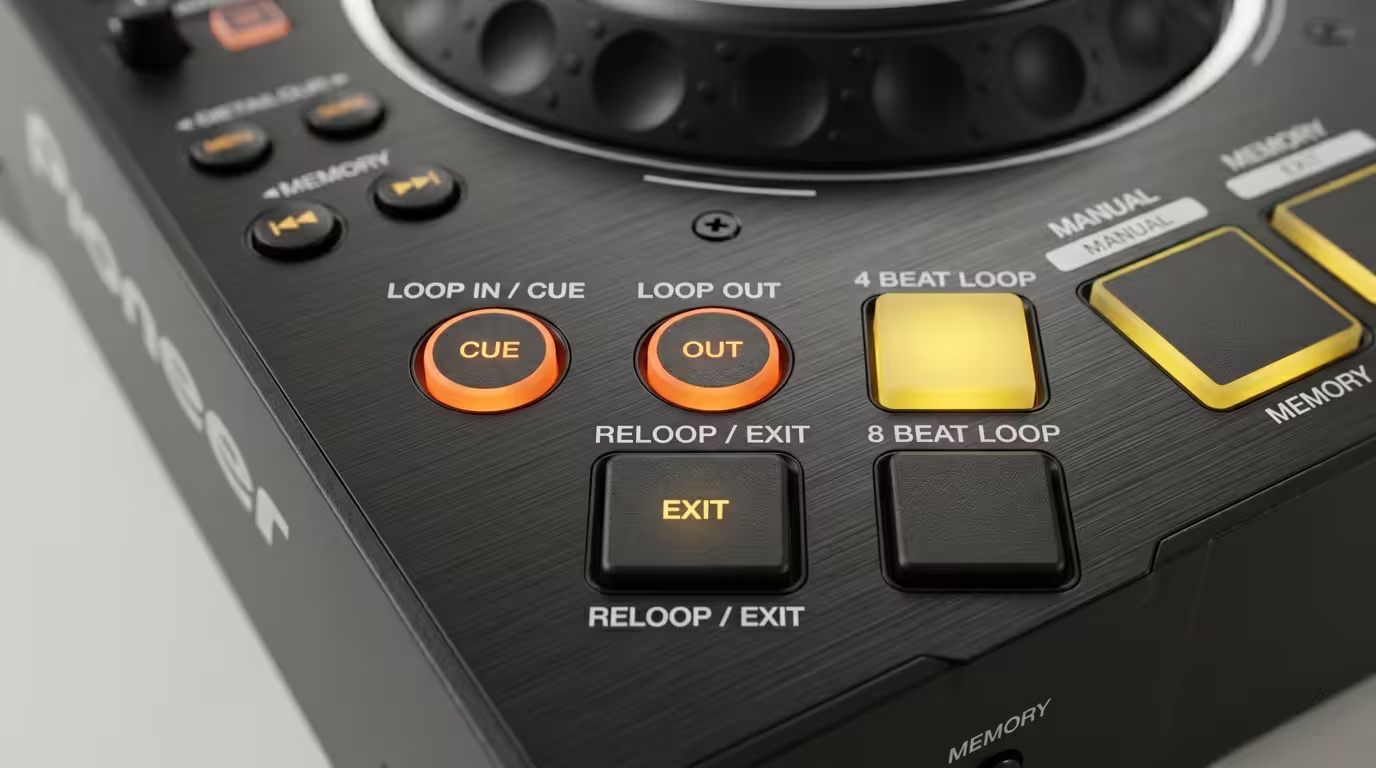
Halving and doubling is the workhorse. You can shrink a loop to half its length or stretch it to double — on a Pioneer CDJ-3000 the dedicated 4 Beat Loop (1/2X) and 8 Beat Loop (2X) buttons do exactly this, and Serato has a Loop Length Half/Double control to halve or double the current loop. So an eight-beat loop becomes sixteen with one press, or four, then two, then one with repeated halving.
Loop in/out adjust lets you nudge the loop points if your manual loop landed early or late. On the CDJ-3000 you hold Loop In (In Adjust) or Loop Out (Out Adjust) and turn the jog wheel to fine-tune each edge; the same fine-adjust exists in Serato by holding the In or Out button and moving the platter.
Exit and reloop turns the loop off (releasing playback forward) and back on (jumping to the loop again). Pioneer's button is labelled Reloop/Exit.
Loop move shifts the whole loop forward or backward through the track by a set number of beats without changing its length — useful for keeping a loop locked to the start of a phrase as you travel through a track. Native Instruments' Traktor does this by holding Shift and turning the loop encoder, and Pioneer ties it to its Beat Jump/Loop Move function.
Quantize and Beat Grid
Clean loops depend on an accurate beat grid. With quantize enabled, loop points and reloops snap to the nearest beat (or beat fraction) so they stay tight even if your press is loose. The flip side: auto loops are only as accurate as the analysis underneath them. If a track's grid drifts — common with live drummers or older recordings — an auto loop can land slightly long and clunk on every pass. Digital DJ Tips documented exactly this while preparing a transition with Luther Vandross's "Never Too Much," an older track with a live drummer whose tempo drifts: a 32-beat loop ended up almost a quarter-beat too long until quantize was switched on before creating the loop. The lesson: analyse and grid your tracks properly, and lean on quantize for live loops.
Loop Roll and Slip Loops
A standard loop holds your position — when you exit, playback continues from inside the loop. A loop roll behaves differently and is one of the best creative tools in the box. A loop roll performs an auto loop, but the track keeps playing silently underneath the whole time, so when you release the roll, playback jumps to where it would have been if you'd never looped at all. This is slip mode in action: Serato describes Slip Mode as letting you manipulate the audio — scratching, looping, triggering cues — and then returning playback to where it would be had you not touched it.
Two things define a loop roll. First, it is momentary — engaged while you hold the pad, disengaged when you release. Second, because the playhead never actually stops advancing, a roll never throws your phrasing off. That makes short rolls (1/8, 1/16, 1/4 beat) perfect for stutter effects, drum fills, and tension-building bursts right before a drop, without losing your place in the track. Pioneer's CDJ-3000 even offers a dedicated Slip Loop with its own short beat values for this purpose.
The classic build is to roll progressively shorter: a 1/4-beat roll followed by even shorter rolls just before a drop ratchets up tension and energy. Distinguish this clearly from a held loop — use a held loop to wait, and a loop roll to decorate without waiting.
Saved Loops and Hot Loops
You don't have to set every loop live. A saved loop stores a loop's in/out points so you can recall it instantly later. Serato DJ Pro gives you up to eight saved-loop slots per track; per Serato's own documentation, you can save up to eight loops for each track and recall them when required, and your loops are saved to the file and recalled the next time it is loaded. Pioneer's gear and rekordbox store loops as memory loops or hot-cue loops, and VirtualDJ offers eight saved-loop slots as well.
There's a useful overlap with hot cues here: on rekordbox gear, if you set a loop and then press an unassigned hot-cue pad, the loop is stored to that pad as a hot loop — a single press both jumps to and launches the looped section. That makes saved loops a great panic button: pre-set a loop on the breakdown or outro so you always have a clean section to mix out of. Because this sits at the boundary of two techniques, see the Using Hot Cues article for cue-pad workflow; here, just remember a hot cue set during a loop can capture that loop for instant recall.
One safety-net cousin worth knowing: Pioneer CDJs have an Emergency Loop, which, per the CDJ-3000 instruction manual, automatically plays a beat loop if the player cannot start the next track by the time the current one ends. It's a fail-safe rather than a creative tool — and a 2021 CDJ-3000 firmware update (v1.08) added full-file caching that largely retired it — but it's a neat reminder that looping is baked into the gear at the deepest level.
The Number-One Use: Extending Sections for Mixing
If you learn only one looping use, make it this: extending intros, outros, and breakdowns to control your mix window. Many tracks — especially ones not built with DJs in mind — have short intros or abrupt endings. By looping the last bar or two of an outro, you decide when to take a track out rather than letting the arbitrary length of the ending decide for you. Loop an eight- or sixteen-beat percussive section of the outro and it will faithfully repeat, giving you a long, relaxed runway to blend the next track in.
The same works in reverse for an incoming track with only a few bars before the vocal or bassline hits: loop those bars to hold the intro open until you're ready. Drum and percussion sections loop most cleanly because they have no melodic phrase to get clipped. Release the loop just as the old track mixes out so the incoming track drops straight into its main section. Loops of roughly 4 to 16 beats tend to work best for this. (For the transition mechanics this serves, see the Beginner Transition Types article.)
Building Tension and Energy
Looping is a tension machine. Set a loop in a breakdown and progressively halve it — 4 to 2 to 1 to 1/2 to 1/4 beats — and the music tightens into a riser that lifts the room before a drop. Serato's hidden trancifier automates this idea: it is a feature baked into the software that, as We Are Crossfader explains, essentially sets a one-beat loop and then automatically halves it on each pass, sounding best on breakdowns, isolated vocals, and strong beats. The key is to exit before it shrinks to a nearly unmusical, sine-like note. Loop rolls do the same job in a more rhythmic, hands-on way, and looping the last beat for a stuttering climax is a reliable way to mark the moment just before you slam into a drop. Just be careful not to overdo the stutter.
Re-Editing and Fixing Tracks Live
Loops let you rearrange a track on the fly. You can loop past a weak section, extend a drop so people dance longer, or stretch a too-short edit into something mixable — looping is the old-fashioned, trusted fix for a track with a short intro or outro. It's a genuine get-out-of-jail card when a track is running out and the next one isn't ready: throw on a sensible loop and you've bought all the time you need. Used with restraint, this turns you into a live editor rather than just a track-player.
Creative Performance and Mashups
Beyond utility, loops are a performance instrument. Loop an instrumental or drum section on one deck and drop an acapella over the top for an instant live remix; this is the backbone of on-the-fly mashups. Many DJs keep a few signature loops — a distinctive riff, a vocal phrase, even ambient textures — ready to bring in and out across a whole set. Loops also combine beautifully with other tools: filter a loop to sweep it in and out, or echo out of a loop for a smeared, atmospheric exit into the next track. With a four-deck setup or a sampler you can run a looped section as a third layer bridging two acapella-intro tracks into a seamless mashup.
Combining Loops With Other Techniques
Loops rarely work alone. Stack them with:
• Hot cues — launch a saved hot loop, or set a loop from a cue point you trust.
• EQ and filters — cut the bass out of a loop, or run a filter sweep across it to add movement during a long blend.
• FX — echo, delay, and reverb out of a loop give a transition a natural tail.
• Phrasing — set and release loops on phrase boundaries so the underlying musical structure stays intact.
Native Instruments' Traktor, Serato, rekordbox, and VirtualDJ all expose these controls slightly differently — Traktor's loops and loop controls live in its deck panels, and VirtualDJ documents its manual, auto, roll, and saved-loop modes in its loops manual — but the underlying concepts transfer across all of them.
Tips and Common Mistakes
The difference between a loop that elevates a set and one that annoys the floor comes down to a handful of habits, well summarised in Digital DJ Tips' guide on using loops without annoying everyone:
• Loop a musically sensible length. Whole bars (4, 8, 16 beats) are your default. Odd lengths usually sound looped.
• Loop on the beat and the phrase. Use quantize and an accurate grid; start loops at the beginning of a musical phrase, not mid-bar.
• Exit cleanly on a phrase boundary. If your loop release lands on bar 13 of a 16-bar phrase, the transition will feel like it stumbles even if the beat stays locked.
• Don't loop too long or leave it running. A loop held for half a minute becomes obvious and boring; the audience notices the repetition.
• Mind manual-loop accuracy. Without quantize, manual loops need precise in/out presses — practice them.
• Check your beat grids. Auto loops inherit any analysis error, so a sloppy grid makes sloppy loops.
• Don't overuse looping. It's a get-out-of-jail card and a spice, not the whole meal.
Key takeaways
• A loop repeats the audio between a loop-in and loop-out point seamlessly; keep the length a whole number of beats or bars.
• Auto/beat loops snap a chosen beat length to the grid in one press; manual loops capture a custom region via Loop In/Out and need accurate timing.
• Halve/double, in/out adjust, reloop/exit, and loop move are the universal controls; quantize and a clean beat grid keep loops tight.
• Loop rolls use slip mode so the track keeps advancing underneath — ideal for stutters and builds without losing your place.
• Saved/hot loops let you recall a loop instantly; the headline practical use is extending intros, outros, and breakdowns to control your mix window.
• Combine loops with hot cues, EQ, filters, and FX — and don't overuse them.
Ready-made, exclusive EDM tracks with full rights — released as your own.
