If you can already beatmatch but you are baffled by whether you need to buy a separate soundcard or audio interface, you are asking the right question at the right time. The short answer: most modern DJs do not need a standalone interface because their controller or mixer already contains one — but laptop-only software DJs, digital-vinyl users, and producers often do. This article explains the audio routing underneath that answer so you can decide with confidence.
What an Audio Interface Actually Does
An audio interface — often loosely called an external soundcard — is a device that converts audio between the analog and digital domains and adds inputs and outputs to a computer. On the way out, a digital-to-analog converter (DAC) turns the computer's digital audio into the analog voltage that drives speakers and headphones; on the way in, an analog-to-digital converter (ADC) does the reverse. As Wikipedia's reference entry notes, DACs convert digital data streams into analog audio in music players, while an ADC performs the reverse function. Every laptop already has these converters built in, which is why your headphone jack makes sound at all.
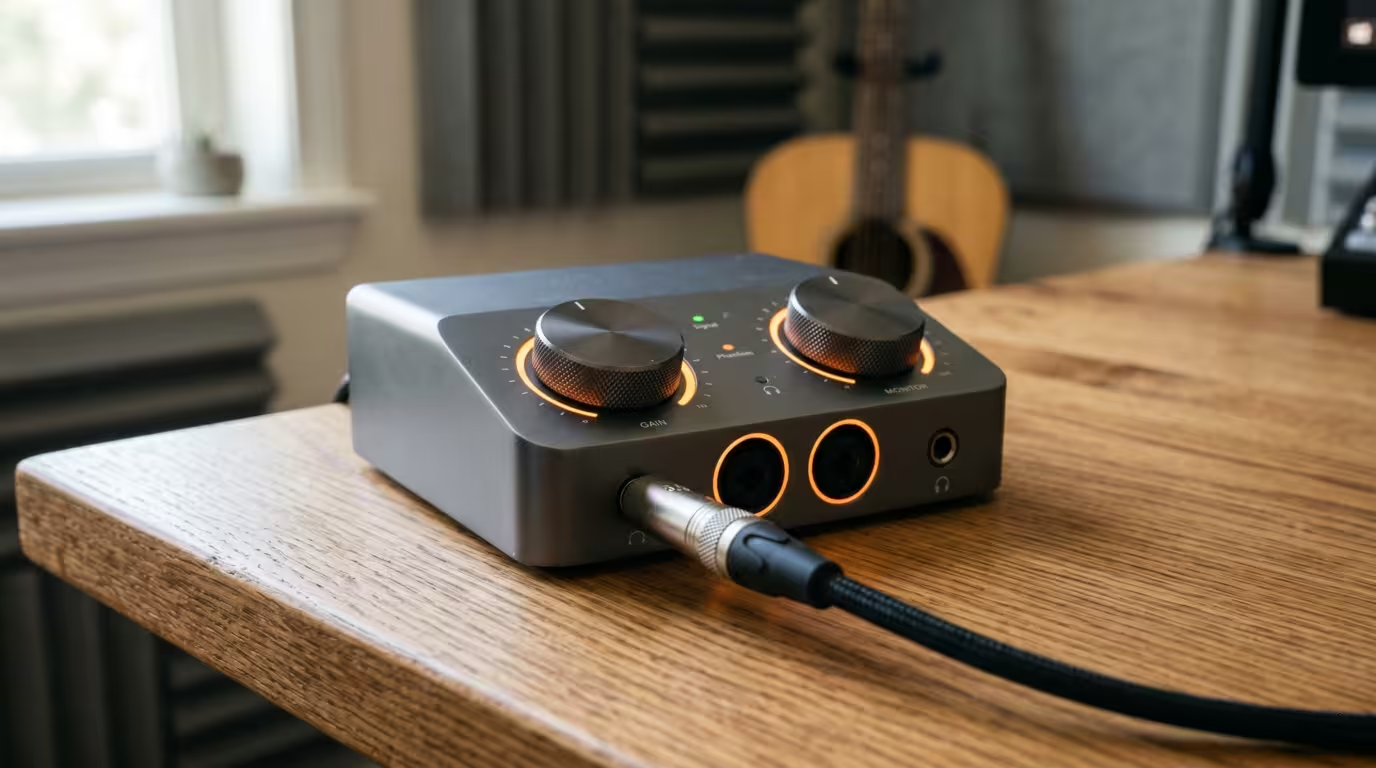
So if your laptop already converts audio, why buy anything? Because for a DJ the conversion quality is secondary. The decisive job of a DJ-grade interface is to provide multiple independent outputs, so you can send the finished mix to the venue's speakers and a separate preview signal to your headphones at the same time. That single capability is the entire reason the question exists.
The Core DJ Requirement: Two Stereo Outputs
Mixing live requires you to hear the next track in your headphones before the audience hears it. This pre-listen, called cueing or PFL (pre-fade listen), is non-negotiable for beatmatching by ear. To do it, the software must send two completely different signals at once: the master mix to the speakers, and the cued track to your headphones.
That means you need at least two independent stereo outputs — four channels in total. One stereo pair (left and right) is the master; the other stereo pair is the cue. As the Mixxx manual puts it, the most common DJ setup is a laptop plus a soundcard with two stereo outputs (four channels), where the first pair carries the main mix to the audience and the second lets you cue and preview the next track in your headphones.
Here is the trap that confuses beginners: a typical laptop has only one stereo output. Its headphone jack is not a second, independent output. As the Mixxx hardware documentation explains, plugging headphones into a laptop simply redirects its single stereo output from the speakers to the headphones — it is not a separate channel. One stereo output physically cannot carry a master signal and a different cue signal simultaneously, and that is precisely the gap a DJ audio interface (or a controller's built-in soundcard) fills. The table below summarizes the minimum routing a DJ needs.
| Signal path | Channels | Goes to |
|---|---|---|
| Master mix | Stereo (2) | Speakers / amplifier |
| Cue / pre-listen | Stereo (2) | Headphones |
When You Do Not Need a Separate Interface
For the majority of DJs today, the answer is genuinely no — because the soundcard is already inside the gear they own.
If You Use a DJ Controller
Virtually every DJ controller above the most basic toy models has a multi-channel audio interface built in, with separate master and headphone outputs. As the Mixxx manual confirms, many DJ controllers include an audio interface with two separate stereo outputs built into the device, so the DJ only has to carry one piece of hardware besides the laptop. For example, Pioneer DJ states that the entry-level DDJ-FLX4 has a built-in sound card, so the controller connects straight to your speakers or amplifier over a single RCA cable, with separate MASTER (RCA) and PHONES outputs on the rear panel. Pioneer's specifications list that built-in soundcard as 16-bit/24-bit, 44.1/48 kHz, with a 103 dB signal-to-noise ratio and distortion below 0.005% over USB. Plug the controller into your laptop over USB, plug speakers into the master and headphones into the phones jack, and you have your two stereo outputs with no extra purchase. This is the most common modern case.
If You Use an All-in-One, CDJs, or a DJ Mixer
Standalone all-in-one systems and traditional CDJ-plus-mixer rigs do their own audio routing entirely in hardware, so no computer soundcard is involved. A hardware DJ mixer takes line-level inputs from each deck and provides its own master output and its own headphone-cue section — you cue from the mixer, exactly as vinyl DJs always have. Many modern DJ mixers also include a built-in USB audio interface, which lets software send unmixed audio files straight to the mixer without a separate stand-alone interface.
When You Do Need a Separate Interface
There are three clear cases where buying an interface is the right move.
Laptop-Only Software DJing
If you DJ purely in the box with software and a mouse or keyboard — no controller, no mixer — your laptop's single stereo output cannot give you both master and cue. Here you need an external interface with two stereo outputs, or you fall back on the split-cue workaround described below. Historically, DJs used a cheap two-output USB soundcard for this; the long-running budget classic is the Behringer UCA222, a compact bus-powered unit with stereo RCA inputs and outputs plus a headphone jack. It is a real solution, but its converters and output count are modest, and you typically cue through its single headphone output rather than getting two full stereo pairs.
DVS With Turntables or CDJs
A Digital Vinyl System lets you control digital files using timecode pressed onto special vinyl or CDs spun on real decks. As Wikipedia explains, the turntable's timecode output is routed into an analog-to-digital converter, which may be a multi-channel soundcard or a dedicated external USB interface box, DJ controller or compatible mixer. Crucially, that ADC must be DVS-certified for your software. If your mixer already has a built-in DVS-enabled soundcard, you are set; otherwise you need a DVS interface (a breakout box). Examples include the Serato-certified Rane SL2/SL3/SL4 series, the Denon DJ DS1, Native Instruments' Traktor Audio 6, and Pioneer DJ's INTERFACE 2 for rekordbox DVS — a 2-channel box with phono/line RCA inputs supporting 44.1/48/96 kHz, bundled with timecode vinyl. Serato publishes a full list of DVS-capable mixers, controllers and interfaces, and you should confirm your exact device appears on it before buying timecode.
Producers Who Also DJ
If you make music as well as DJ, an audio interface is essential for production reasons separate from cueing: recording microphones and instruments, low-latency monitoring, and connecting studio monitors via balanced outputs. Popular choices include the Focusrite Scarlett 2i2, Universal Audio Volt 2, MOTU's M2/M4, and SSL 2 — typically 2-in/2-out boxes with two mic/line/instrument preamps, 24-bit/192 kHz converters, and balanced TRS monitor outputs. The MOTU M2, for instance, is a 2-in/2-out USB-C interface with two balanced 1/4-inch TRS outputs alongside mirrored RCA outs, an ESS Sabre32 DAC quoted at 120 dB dynamic range, round-trip latency as low as 2.5 ms at 96 kHz, and support up to 192 kHz. The good news: the same interface can serve double duty for bedroom production and laptop DJing, since both ultimately need clean multi-channel I/O.
How Split-Output (Split-Cue) Works
What if you only have a single stereo output and no budget for an interface? Software offers a compromise called split output or split cue. The software takes your one stereo jack and splits it into two mono signals: the master goes to the left channel, the cue goes to the right. A Y-splitter cable (one stereo plug to two separate connectors) then separates them so speakers get one and headphones get the other.
VirtualDJ's manual documents this exactly: choosing the SPEAKER+HEADPHONE output with the stereo-to-mono splitter option routes the master to the first mono channel and the headphones to the second mono channel of the computer's built-in sound card. The Mixxx manual calls the Y-cable the cheapest way to DJ and cue with headphones, but warns that your audience loses the stereo image entirely.
That warning is the whole point: split cueing sacrifices stereo. Both your master and your monitoring collapse to mono, and the audio quality of a laptop's built-in output is lower than a dedicated interface. It is fine for practising and learning at home, but it is not a gig-quality solution. A true multi-channel interface — or a controller's built-in soundcard — gives you full stereo on both the master and the cue. The contrast is summarized below.
| Feature | Split-cue (Y-cable) | True interface / controller |
|---|---|---|
| Master sound | Mono | Full stereo |
| Cue sound | Mono | Full stereo |
| Best use | Home practice | Live gigs |
Key Specs If You Buy an Interface
If you have decided you need one, these are the specifications that actually matter for DJs and producers.
Inputs and outputs. For DJ use you want at least four outputs (two stereo pairs) so master and cue are each full stereo; for DVS you need the right phono/line inputs for your decks; for production you want enough mic/line inputs for your sources.
Bit depth and sample rate. 24-bit at 44.1 or 48 kHz is the practical standard, with many interfaces reaching 96 or even 192 kHz. The Focusrite Scarlett 2i2, for example, uses 24-bit/192 kHz converters. Higher numbers matter more for production than for DJ playback.
Drivers and latency. On Windows, low latency depends on the ASIO driver standard developed by Steinberg. As Wikipedia notes, ASIO was introduced in 1997 to stream audio between an interface and software with minimal latency and sample-accurate timing; ASIO 2.0 (1999) added direct monitoring, and in October 2025 Steinberg announced ASIO would also be offered under an open-source GPLv3 license. ASIO bypasses the normal Windows audio path to talk to the hardware directly. On macOS, the equivalent is the built-in Core Audio system, so ASIO drivers are not needed and interfaces on macOS are usually plug-and-play.
Connection and power. Most modern interfaces connect over USB-C (or USB) and are bus-powered, meaning the USB cable supplies power; some, like Pioneer's INTERFACE 2, can also run on an AC adapter.
Balanced outputs. For connecting studio monitors, look for balanced TRS or XLR outputs. As the Wikipedia entry on balanced audio explains, a balanced connection allows long cable runs while resisting external noise from electromagnetic interference — valuable in a studio, though most club DJ mixers still use unbalanced RCA.
Phono inputs. Only relevant if you intend to plug turntables straight in (for DVS or digitizing vinyl); phono inputs include the correct preamp and grounding post.
Decision Summary: Do You Need One?
Use this guide based on how you DJ.
| Your setup | Need a separate interface? |
|---|---|
| DJ controller | No — built-in soundcard |
| All-in-one / CDJs + mixer | No — mixer handles routing |
| Laptop-only software DJ | Yes (or split-cue workaround) |
| DVS without a DVS mixer | Yes — DVS-certified interface |
| Producer who also DJs | Yes — for recording/monitoring |
Recommendations
Start by identifying which row above describes you, because that determines everything. If you are buying your first setup and just want to learn to mix, get a DJ controller with a built-in soundcard rather than a separate interface — it is cheaper, simpler, and gives you proper stereo cueing out of the box. If you already own turntables or CDJs and a mixer, check whether your mixer has a built-in (and DVS-certified) soundcard before spending anything; only buy a DVS breakout box if it does not. If you are a producer first and DJ second, buy a quality 2-in/2-out studio interface — it covers both jobs. Reserve the Y-cable split-cue trick for home practice only, and treat it as a temporary measure rather than a gig rig.
The thresholds that should change your decision: the moment you want to play out in public, stop relying on split-cue mono and get full-stereo two-output hardware; the moment you want to spin timecode, confirm your exact device is on your software's official DVS-supported hardware list before buying records; and the moment you start recording instruments or vocals, prioritize an interface with good preamps and balanced monitor outputs over one chosen purely for DJing.
A Note on Terminology
Manufacturers and retailers sometimes blur soundcard, audio interface, and DVS box, but they are not always interchangeable — a DVS interface enables timecode control and is not automatically the same as a plain recording interface, and a phone-or-tablet wireless controller may have no soundcard at all and rely on a splitter. Before buying, verify two things against primary sources: that your specific controller or mixer model actually contains a built-in (and, for timecode, DVS-certified) soundcard, and that the exact interface you are considering appears on your DJ software's official supported-hardware list. Treat retailer-quoted sample-rate and bit-depth numbers as something to confirm against the manufacturer's own spec page.
Key takeaways
• DJ cueing needs two independent stereo outputs (4 channels); a laptop's single headphone jack cannot do master and cue at once.
• DJ controllers, all-in-ones, and most DJ mixers have a multi-channel soundcard built in, so you do not need a separate interface.
• You do need an interface for laptop-only software DJing, for DVS without a DVS-capable mixer, and for music production.
• Split-cue squeezes master and cue into one stereo jack as mono each — fine for practice, not for gigs.
• If buying, prioritize four or more outputs (or the right I/O), 24-bit/44.1–48 kHz, ASIO or Core Audio drivers, and balanced outputs for monitors.
Ready-made, exclusive EDM tracks with full rights — released as your own.
