When you DJ with a controller or a DVS (digital vinyl system) setup, your laptop is the engine room: it decodes the audio, applies effects, and feeds the mix to your controller's soundcard. That makes reliability, not raw horsepower, the single most important spec. This guide explains the CPU, RAM, storage, ports and operating system that DJ software actually needs, why each matters, and how to choose and maintain a machine that will not quit in front of a crowd.
Why the Laptop Is the Weak Link
In a software-DJ rig, the controller is mostly a set of knobs, jogs and faders sending MIDI to the computer, while the laptop does the heavy lifting — reading tracks from disk, time-stretching, beat-syncing, mixing and rendering effects in real time. If the laptop stutters, the music stutters; if it crashes, the music stops. That is why experienced DJs obsess over stability over benchmark scores.
It is worth being honest about the trade-off this creates: a laptop is a general-purpose computer running an operating system, background apps and updates, any of which can interrupt a real-time audio stream. This single point of failure is precisely why standalone players and all-in-one systems (which run a dedicated embedded OS) exist — and why so many working DJs keep a stripped-down gig laptop reserved for performing. The good news, as Digital DJ Tips notes, is that almost any laptop bought in the last few years will run DJ software fine; the art is in choosing sensibly and then optimising and protecting the machine.
CPU: Enough Cores, With Headroom for Stems
DJ software is only moderately CPU-hungry for basic two-deck mixing, but demand climbs steeply when you add effects, run three or more decks, mix video, or use real-time stem separation (isolating vocals, drums and instrumentals). Track analysis — detecting tempo, beatgrids and key — is also CPU-intensive, which is why importing a big library for the first time spikes your processor.
The published minimums cluster around a modern multi-core Intel Core i5 (or AMD equivalent) or Apple Silicon. Native Instruments' Traktor Pro 4 specifications list an Intel Core i5 or Apple M1/M2/M3 with 4 GB of RAM on macOS 13 to 15, and an Intel Core i5 or equivalent with 4 GB on Windows 10 or 11. rekordbox lists Intel Core i-series or Apple M1-series-or-later chips, and notes that the STEMS function specifically requires an Intel 8th-generation-or-later or AMD Zen+-or-later CPU. Serato is stricter on instruction sets: per Serato's system-requirements page, recent Serato DJ Pro versions require a CPU that supports the AVX instruction set, and the recommended tier asks for a 6th-generation Intel Core i5 or AMD Ryzen 5 3000-series or higher. Serato's high-performance tier — aimed at low-latency scratching, stem separation and video mixing — calls for an 8th-generation Intel Core i9 or AMD Ryzen 7 5000-series or higher, 16 GB of RAM and a dedicated 2 GB of video memory.
The practical takeaway: a current-generation i5/Ryzen 5 or any Apple Silicon Mac is a sensible floor for performing, and a faster chip mainly buys you headroom for stems, video and effects rather than better sound. Representative published CPU and RAM minimums are shown below.
| Software | Minimum CPU | Minimum RAM |
|---|---|---|
| Serato DJ Pro (recommended) | Intel Core i5 / Ryzen 5 (AVX) / Apple M-series | 8 GB |
| rekordbox | Intel Core i-series / Apple M1-or-later | 8 GB |
| Traktor Pro 4 | Intel Core i5 / AMD Ryzen 5 / Apple M1+ | 4 GB |
| VirtualDJ (recommended) | Intel Core i5 / Ryzen 7 / Apple M1+ | 8 GB |
RAM: 8 GB to Perform, 16 GB to Produce
Memory holds your operating system, the DJ application, the track waveforms you have loaded, and your library index. Too little RAM forces the system to swap data to disk, which causes the stutters and dropouts that ruin a set. The published figures bear this out: Traktor Pro 4 lists 4 GB as a bare minimum, while rekordbox and the Serato DJ Pro recommended tier both call for 8 GB or more — and rekordbox explicitly wants 16 GB or more once you use STEMS or Groove Circuit.
Treat 8 GB as the realistic minimum for performing and 16 GB as comfortable, especially if you also produce music, run a DAW alongside, keep a browser open for streaming, or manage a very large library. rekordbox's own documentation warns that even with the stated memory, performance can suffer when many tracks are being managed or background apps are running, and recommends adding memory for stable performance. Because RAM in many modern laptops is soldered and non-upgradeable, buy more than you think you need at purchase time.
Storage: SSD, and Keep It Roomy
If you change one thing about a DJ laptop, make it the drive. A solid-state drive (SSD) has, as Wikipedia's overview puts it, no moving mechanical parts, which makes it resistant to physical shock, quieter and faster to access than a spinning disk. For a machine that lives in a bag, gets knocked in a booth and travels to gigs, the shock resistance matters as much as the speed: a hard disk has a read/write head hovering over a platter that can skip or crash if jolted, whereas an SSD has nothing to physically disturb. SSDs also load tracks and waveforms far faster, which keeps browsing snappy mid-set.
Capacity matters because music libraries balloon, particularly if you store lossless files. A CD-quality WAV needs a little over 1.4 megabits per second, which works out to just over 10 MB per minute of music — roughly 30 to 45 MB for a single track. FLAC compresses that losslessly: per Wikipedia's FLAC article, the format typically shrinks audio to between 50 and 70 percent of its original size while decompressing to an identical copy. Even so, a serious collection still runs into hundreds of gigabytes. Aim for at least 512 GB internal storage; many DJs go 1 TB or supplement with an external SSD for the bulk of their library while keeping the OS drive lean. Leave generous free space on the system drive: a near-full drive slows down and can destabilise the OS, so keeping comfortable headroom free is good hygiene.
Operating System and the Do Not Update Rule
This is the spec DJs most often get burned by. DJ software supports specific, tested versions of macOS and Windows, and a brand-new OS release is frequently not supported on day one. Updating your operating system the moment Apple or Microsoft pushes it can break audio drivers and controller compatibility before the software vendor has certified the new version.
The pattern is well documented. Serato states plainly that current Serato DJ Pro and Lite versions no longer support 32-bit operating systems, and that support for each new macOS arrives in a specific later build rather than automatically. AlphaTheta/rekordbox publishes a running list of which macOS versions are supported and maintains dedicated pages for each new macOS. Traktor Pro 4 lists support for macOS 13, 14 and 15 and Windows 10 and 11. The lesson is simple: before any important gig, do not auto-update, check your software's supported-OS list, and only upgrade once your DJ software officially supports the new version. The currently supported desktop operating systems across the major apps look like this.
| Software | macOS support | Windows support |
|---|---|---|
| Serato DJ Pro 4.x | Recent macOS (Monterey 12 and later) | Windows 10 / 11 (64-bit) |
| rekordbox 7 | Ventura 13 to Tahoe 26 | Windows 10 / 11 |
| Traktor Pro 4 | macOS 13, 14, 15 | Windows 10 / 11 |
Ports and Connectivity
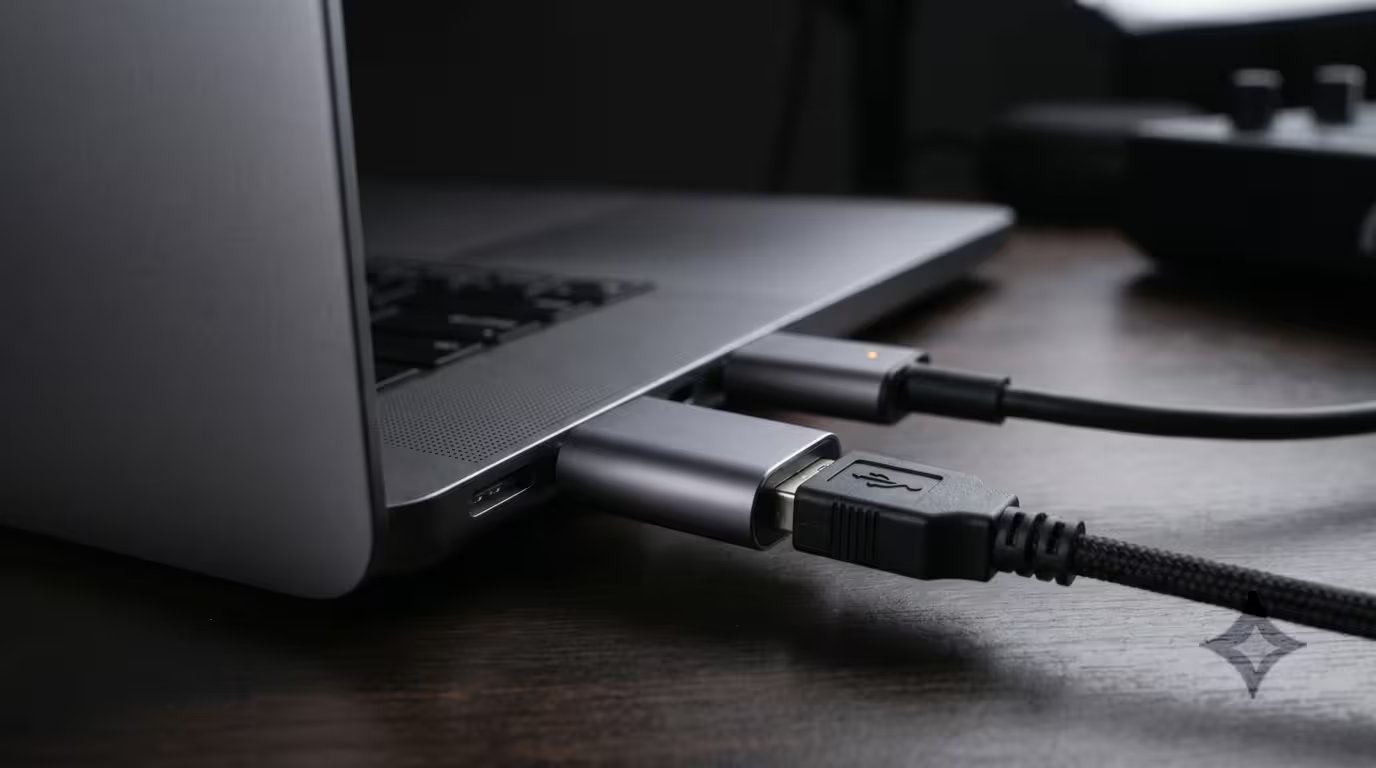
Your controller connects to the laptop over USB and almost always carries both the MIDI control data and the audio in a single cable; many controllers are USB bus-powered, drawing their power from that same port, so a solid connection is critical. Most controllers still terminate in USB-A or USB-B, while modern laptops increasingly ship with only USB-C / Thunderbolt ports.
USB-C, per Wikipedia, is a 24-pin reversible connector (not a protocol) that has superseded the older USB-A and USB-B connectors; Thunderbolt uses the same physical connector but adds far higher bandwidth. The upshot for DJs: a USB-C-only laptop will happily run a USB-A or USB-B controller, but you will need the right cable or a quality adapter. Buy a known-good cable or adapter rather than the cheapest one, and be wary of unpowered multi-port USB hubs, which are a common cause of dropouts and disconnections; if you must expand ports, use a powered hub. It is also worth having at least two ports (one for the controller, one for a USB drive or to charge a phone), and remembering that headphone cueing and master audio are handled by the controller's built-in soundcard, not your laptop's headphone jack.
Screen, Build and Battery
Screen size is a portability trade-off: a 13-to-14-inch laptop is easy to fit in a cramped booth and a bag, while a 15-to-16-inch screen is easier to read at a glance. Build quality matters more than buyers expect, because DJ laptops lead rough lives — knocks, spills, heat in sweaty clubs and cold car boots. A sturdy chassis earns its keep.
On battery: have it, but do not rely on it. Always run from mains power during a set. Both Serato and rekordbox warn that running on battery lets the OS throttle the CPU to save power, which can cause audio dropouts — Serato even shows a battery-warning icon, and rekordbox's documentation explicitly advises keeping the AC adapter connected for constant high performance. Many working DJs go a step further and keep a dedicated, stripped-down gig laptop that does nothing but DJ.
macOS vs Windows: Both Work
Both platforms run all the major DJ software well, so this is not a question with one right answer. Macs — especially Apple Silicon M-series machines — are popular among DJs and producers for their stability, strong resale value and Apple's tight hardware and software integration. A practical macOS advantage is audio: macOS uses Core Audio, Apple's built-in low-latency audio framework, so class-compliant controllers typically work with no driver install. Apple Silicon is also genuinely efficient for stems and real-time processing.
Windows offers vastly more choice and price points, from budget machines to powerful gaming laptops, and closes the gap on reliability when well configured. The main difference is audio plumbing: Windows' built-in audio paths add latency, so pro audio relies on ASIO — a low-latency driver standard developed by Steinberg. As Steinberg notes, ASIO drivers are not required under macOS because of Apple's Core Audio, whereas on Windows you will often install a manufacturer ASIO driver (or ASIO4ALL for built-in sound) and spend more time optimising the system. Pick the OS you know best and can keep stable; the platform war matters less than disciplined setup.
| Factor | macOS | Windows |
|---|---|---|
| Audio driver | Core Audio built in, usually no driver | Often needs an ASIO driver |
| Choice and price | Fewer models, premium pricing | Huge range, budget to high-end |
| Setup effort | Lower out of the box | More optimisation typically needed |
Optimising and Maintaining a DJ Laptop
A correctly set-up mid-range laptop will outperform a powerful but neglected one. The goal is to remove anything that can interrupt the audio stream. Concretely: disable automatic OS and app updates so nothing installs mid-set; turn off Wi-Fi, Bluetooth and notifications during performances (unless you are streaming) to stop background chatter and resource use; close background applications; and set the power plan to High Performance on Windows, or stop the display sleeping and disable battery throttling on macOS, always plugged into mains.
On Windows, set USB selective suspend and processor power management to maximum performance so a controller or soundcard never powers down mid-set. If you run antivirus, add exclusions for your DJ software and music folders so real-time scanning does not grab the CPU at the wrong moment — Microsoft documents how to add file, folder and process exclusions in Windows Security, though it rightly cautions that exclusions reduce protection, so scope them narrowly. Keep the machine cool and well-ventilated to avoid thermal throttling, restart the DJ app before each set, keep regular backups of your library and cue points, and remember the laptop should never be your only point of failure — carry a backup USB drive or know the venue's gear.
Tablets and Phones: A Lighter Alternative
You do not strictly need a laptop to DJ with software. Apps such as Algoriddim's djay run on iPad, iPhone and Android, connect to club-standard mixers and controllers, and even support DVS and stems on mobile hardware. A modern iPad is a genuinely capable, ultra-portable option for many gigs. For serious, library-heavy, multi-deck or production-adjacent work, though, the laptop remains the workhorse: bigger screen, more storage, full software features and easier connectivity.
Key takeaways
• Prioritise reliability over raw power — a crash stops the music, so stability is the real spec.
• Treat a current i5/Ryzen 5 or any Apple Silicon chip, 8 GB RAM (16 GB if you also produce or use stems) and an SSD of 512 GB or more as your practical baseline.
• Always check your DJ software's supported-OS list and never auto-update before a gig.
• Get the right USB cable or a quality adapter for USB-C-only laptops, avoid unpowered hubs, and always run on mains power.
• macOS and Windows both work; macOS uses driver-free Core Audio, while Windows often needs an ASIO driver and more tuning.
• Optimise the machine: disable updates, kill background apps and radios, keep it cool, back up, and consider a dedicated gig laptop.
Ready-made, exclusive EDM tracks with full rights — released as your own.
