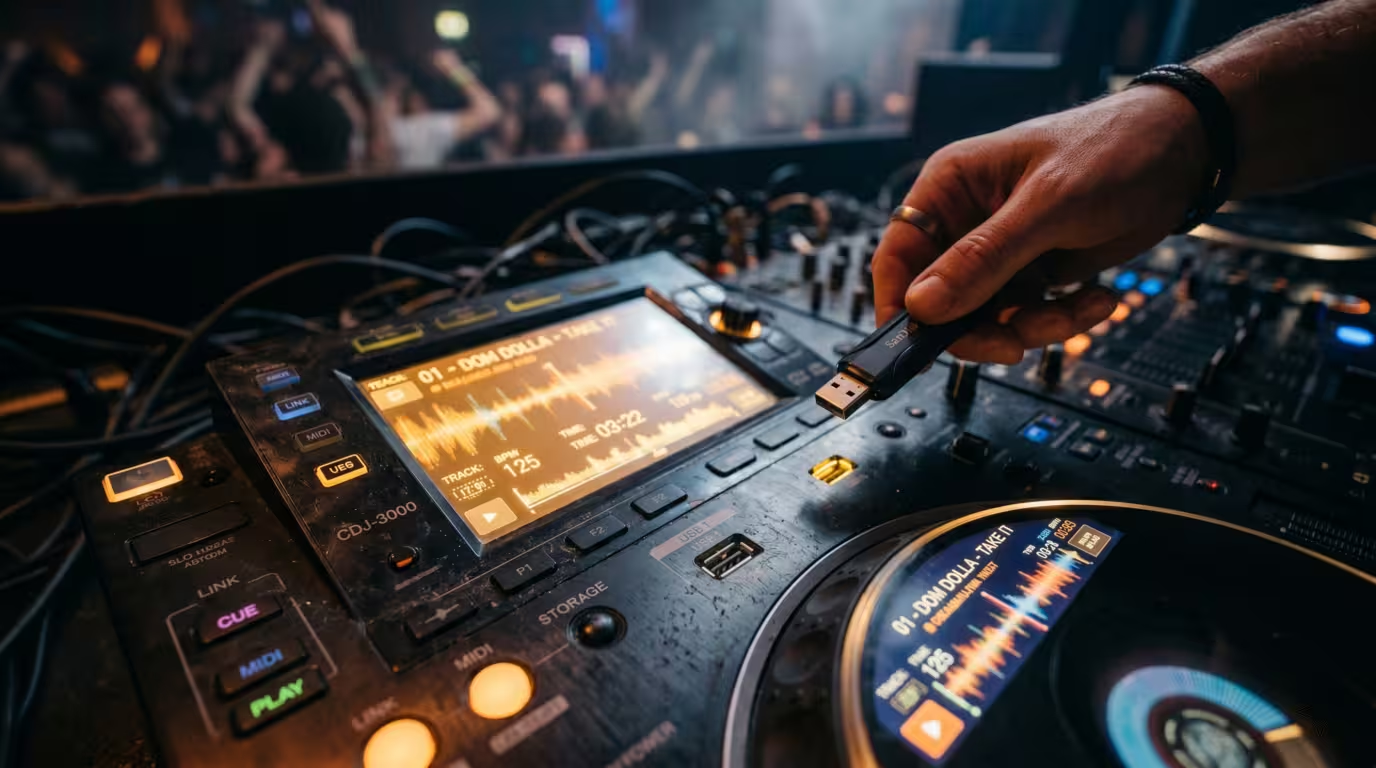
Walking into a booth with a single USB stick in your pocket is the modern club standard, but it only works if that stick was prepared correctly. A CDJ is fussy: the wrong file system, an un-exported drag-and-drop, a 32-bit float WAV, or a library-format mismatch will all leave you staring at an empty screen while the floor waits. This guide is the dedicated, technical walkthrough of preparing USBs for CDJs — from the rekordbox export workflow through formatting, library formats, firmware compatibility, audio files, and fixes. For the broader pre-gig picture see the DJ Set Preparation Checklist, and for plugging in once you arrive see Connecting to a Club Sound System.
Why USB is the club standard
Before 2009, DJing off Pioneer gear meant CDs. That changed when the CDJ-2000 launched on September 17, 2009 alongside the CDJ-900 — the first flagship CDJs with a USB port — and shipped with a new music-management application called rekordbox. The pitch was simple: prepare your library on a laptop at home, export it to a USB stick, and play a whole gig from that stick without bringing the computer at all. Wikipedia's Pioneer DJ entry puts the company's share of the DJ market at roughly 60% (Digital DJ Tips' Global DJ Census reckons it is effectively total in professional environments), so the CDJ-plus-rekordbox-USB combination became the de facto global standard found in virtually every professional booth.
The reason it works so well is that rekordbox does the heavy analytical lifting in advance. When you import a track, rekordbox calculates BPM, key, beatgrids and waveforms, and stores any hot cues, loops and memory points you set. All of that travels to the USB so the CDJ can display waveforms instantly, snap loops to the grid, and recall your cues — none of which the deck could compute quickly on its own mid-set. About six months after launch, the March 2010 CDJ firmware update added Pro DJ Link, which lets up to four (now six on the CDJ-3000) linked players share a single USB over an Ethernet LAN connection.
The rekordbox export workflow, step by step
The single most important rule: you must export through rekordbox, not drag files onto the USB in your computer's file browser. A CDJ will technically play loose files copied straight to a stick, but it will be slow, with no instant waveforms, no accurate cue points and — crucially — none of your playlists. Here is the correct sequence.
1. Analyze your tracks. Import your music into rekordbox and let it analyze (BPM, key, beatgrids, waveforms). Fix any beatgrids and set the cues and loops you want. The DJ Set Preparation Checklist covers analysis and cue-point craft in more depth.
2. Organize playlists. Build the playlists and folders you'll actually browse in the booth. The CDJ reads a playlist in the order it's stored, so sort it the way you want to see it.
3. Insert the USB and switch to EXPORT mode. In the top-left corner of rekordbox, choose Export mode (not Performance mode). Export mode is purpose-built for writing to USB and SD media.
4. Find the device. Your USB appears under Devices in the left-hand tree once it's recognized.
5. Drag playlists or tracks onto the device. rekordbox copies the audio files into a Contents folder and simultaneously writes the database and analysis data into a hidden PIONEER folder (containing files such as export.pdb plus per-track analysis files). This is what makes your playlists, cues, beatgrids and waveforms appear on the deck. You can also right-click a playlist and choose Export to the device.
6. Wait for writing to finish. Don't cancel the progress bar — an interrupted export is a leading cause of databases that look fine in rekordbox but read as empty on a CDJ.
7. Eject safely before pulling the stick, to avoid a corrupted database.
When you look at the finished stick in your computer's file manager you'll only see Contents and PIONEER folders — that's normal and correct. Make all future changes through rekordbox; editing or deleting inside those folders manually will corrupt the library.
Formatting your USB correctly
How you format the drive decides whether the CDJ recognizes it at all and how fast it loads. CDJs read a deliberately limited, old-school set of file systems. According to AlphaTheta's own support documentation, the CDJ-3000 supports FAT, FAT32, exFAT and HFS+ — and explicitly not NTFS. Two more rules matter: the drive must use the Master Boot Record (MBR) partition scheme, not GUID/GPT, and formatting erases everything on the drive, so back up first.
| File system | CDJ support | Notes |
|---|---|---|
| FAT32 | All CDJs/XDJs | Safest universal choice; 4GB per-file limit; Windows GUI formats only to 32GB |
| exFAT | Newer gear only | No 4GB limit; needs recent firmware + rekordbox 6.6.2+ |
| HFS+ | Most players (not oldest) | macOS "Mac OS Extended (Journaled)"; no 4GB limit; error correction |
| NTFS | None | Not recognized at all — never use it |
FAT32 — the safe default
FAT32 is the most compatible option and what Pioneer recommends in most cases: it works on every generation of CDJ and on both Windows and macOS. Its two limits come from its age. No single file can exceed 4GB, which can bite long, uncompressed WAV files. And Windows' built-in formatter only creates FAT32 volumes up to 32GB — a historical quirk of the format dialog, not the spec — so to format a larger drive as FAT32 you need a third-party tool such as the free guiformat (FAT32 Format) utility.
exFAT — for big files on modern gear
exFAT, introduced by Microsoft in 2006, removes the 4GB file limit and handles very large drives while staying cross-platform. The catch is hardware support: rekordbox only added exFAT export in version 6.6.2 in March 2022, and only certain players read it — the CDJ-3000 (firmware 1.20+), XDJ-XZ (1.23+) and XDJ-RX3 (1.11+) at launch, plus newer units like the CDJ-3000X, OPUS-QUAD, OMNIS-DUO and XDJ-AZ. Because older CDJs in clubs can't read exFAT at all, treat it as a choice only when you're certain every deck you'll touch supports it.
HFS+ and how to format
HFS+ (Mac OS Extended, Journaled) is a solid macOS-only option with error correction and no 4GB limit, supported on most players except the oldest. To format on Windows, close rekordbox, open Disk Management, and format the drive as FAT32 (or use a third-party FAT32 tool for drives over 32GB). On macOS, open Disk Utility, select the top-level USB device (not the partition beneath it, or you'll miss the option), click Erase, choose MS-DOS (FAT), exFAT or Mac OS Extended, and critically set Scheme: Master Boot Record.
Library formats: Device Library, Plus, and OneLibrary
The database rekordbox writes to your stick comes in two flavors, and this is where things have recently gotten dangerous. The original format, Device Library, dates to 2009 and is what every CDJ from the CDJ-2000 onward reads. Starting with rekordbox 6.8.x, AlphaTheta introduced Device Library Plus (now rebranded OneLibrary), a faster, cloud-friendly format built for newer hardware and developed as a cross-platform standard with Native Instruments and Algoriddim. The names look similar but the two are not interchangeable: older players read only Device Library; the newest standalone units (CDJ-3000X, OPUS-QUAD, OMNIS-DUO, XDJ-AZ) read only OneLibrary. A modern, updated rekordbox writes both to the stick so it works everywhere — which is exactly why you should keep rekordbox current.
The cautionary tale: on October 21, 2025, AlphaTheta released CDJ-3000 firmware version 3.30 to add OneLibrary support. Per the release notes, if both formats were present the player loaded OneLibrary by default — but the fallback to Device Library failed when the OneLibrary database was blank or out of sync (common for DJs running older rekordbox). The result: USBs that appeared completely empty, even though every track and playlist was still on the drive in the Device Library format. High-profile DJs reported nightmare scenarios at gigs. AlphaTheta temporarily withdrew the firmware on November 4, 2025, confirmed no music or data had been deleted, and advised either downgrading players to firmware 3.20 or exporting in the up-to-date Device Library Plus format. The episode is a textbook reason to keep rekordbox updated, carry a known-good backup, and test before you play. (Separately, AlphaTheta later withdrew rekordbox version 7.2.12, released March 17, 2026, over an unrelated USB-export bug, fixing it in 7.2.13 — another reminder to be cautious immediately after updates.)
Firmware and model compatibility
The lesson generalizes: rekordbox version and CDJ firmware must be compatible, and you should know what's in the venue's booth. Older players don't understand newer formats or files, and very new players don't understand old ones. A few practical truths: the CDJ-2000NXS2 and earlier can't read exFAT; players before the OPUS-QUAD can't read OneLibrary; and the CDJ-3000X reads only OneLibrary, not legacy Device Library. Many clubs still run CDJ-2000NXS2s or even original CDJ-2000s as backup or second-room decks. The safe posture is to keep rekordbox up to date (so it writes both library formats), ask the venue or promoter which CDJ model and firmware they run, and — as some touring DJs do — carry the latest firmware file on a spare stick in case the venue's gear is out of date.
Audio files that CDJs can (and can't) play
CDJs play a defined set of formats, and a file that previews perfectly in rekordbox can still fail on the deck because rekordbox's software decoder is far more forgiving than the hardware. Summarized here; for the underlying detail see Audio File Formats for DJs and Sample Rate and Bit Depth.
The current flagship CDJ-3000 plays WAV, AIFF, FLAC, Apple Lossless (ALAC), MP3 and AAC, at sample rates of 44.1, 48, 88.2 and 96 kHz and bit depths of 16 and 24-bit. What it does not play: 32-bit float files (the default export from DAWs like Ableton, Logic and FL Studio), anything above 96 kHz (176.4/192 kHz hi-res downloads), and DRM-locked or compressed-AIFF oddities. A 32-bit float file typically triggers an unsupported-file-format error. The error guides maintained by community sources explain the two codes you'll see: E-8304 (DECODE ERROR) usually means the CDJ read the file header but the decoder then failed — often a corrupt header or a 32-bit float file — while E-8305 (DATA FORMAT ERROR) usually means the format tag or container wasn't recognized at all. In either case the track may show in the library but refuse to load. The fix is to convert DAW exports to CDJ-friendly PCM before exporting: the universally safe target is 16-bit PCM WAV at 44.1 or 48 kHz, since DAW exports often default to 24-bit or 32-bit float that CDJs reject (24-bit up to 96 kHz is also accepted on the CDJ-3000). A subtler gotcha: some WAVs carry a WAVE_FORMAT_EXTENSIBLE header — as Pioneer DJ Community moderators note, certain Bandcamp downloads are tagged for enhanced multichannel audio that rekordbox ignores but the CDJs do not; the fix is to edit the format tag back to standard PCM (value 01 00) or simply re-encode the file to plain PCM.
Format support narrows sharply on older players. FLAC and ALAC are relatively recent additions — supported on the CDJ-2000NXS2, CDJ-3000 and CDJ-TOUR1, but not on the CDJ-2000NXS, CDJ-2000, CDJ-900 or CDJ-900NXS, which also cap WAV/AIFF at 48 kHz and play no lossless compressed formats at all. So if you might land on older decks, a FLAC-heavy USB is a real risk; WAV, AIFF and MP3 are the universally safe choices. And remember the FAT32 4GB ceiling can split or block very long uncompressed WAVs.
USB hardware and redundancy
Your USB stick is the single most important object you carry, so don't trust a freebie. Use a quality, branded drive from a maker like SanDisk, Samsung, Corsair or Kingston (the SanDisk Extreme PRO and Corsair Voyager GTX are perennial favorites), and avoid cheap novelty or counterfeit drives, which are slow and prone to corrupting mid-set. Counter-intuitively, USB 3.0 is the sweet spot rather than the very newest 3.1/3.2 drives, because some older club CDJs can't read the latest high-spec sticks; a quality USB 3.0 drive gives the broadest compatibility while still slashing export and track-loading times. Capacity of 64 to 128GB is plenty for most libraries (mind the FAT32 32GB-format quirk on larger drives).
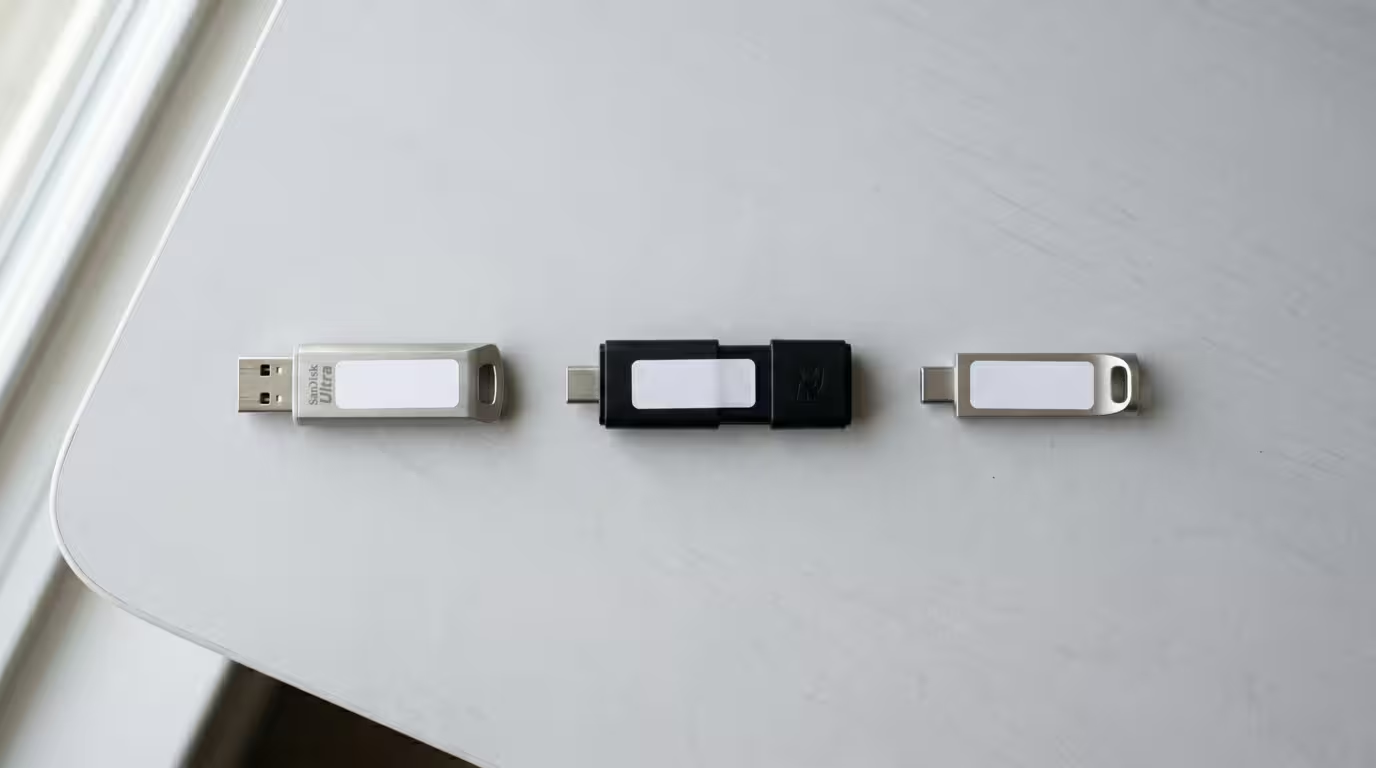
Redundancy is non-negotiable. Carry at least two identical USBs — ideally one per deck. The Pro DJ Link that lets multiple players share a single stick runs over an Ethernet cable that, after years of being knocked around in a booth, often fails or goes missing; a stick in each player removes that dependency entirely. Many touring pros carry three or four, plus one with the latest firmware, and some stash spares in different bags. Finally, this is carry copies, not back up your library — keep your master rekordbox collection backed up separately on your computer and an external drive (and/or cloud), so a lost or dead stick is an inconvenience, not a catastrophe.
Test, then troubleshoot
Always test the finished USB on actual CDJs before an important gig — at a store, a friend's setup or your own deck — and confirm that playlists, cues, beatgrids and tracks all load. Test especially after any rekordbox or firmware update. When something does go wrong, this table maps the common failures to fixes.
| Problem | Likely cause | Fix |
|---|---|---|
| USB not recognized / not in source list | NTFS format or GPT partition | Reformat FAT32 (MBR) and re-export via rekordbox |
| Only a "Contents" folder, no playlists | Files copied, not exported; or cancelled database | Re-export through rekordbox Export mode; eject safely |
| Empty USB on updated CDJ-3000 | Library-format mismatch (3.30 firmware) | Export Device Library Plus / keep a legacy backup |
| Track won't load (E-8305) | 32-bit float, >96 kHz, or FLAC on old player | Convert to 16/24-bit PCM <=96 kHz; use WAV/MP3 |
| Loads on USB but not over Pro DJ Link | File path too long, or flaky LAN cable | Shorten folders/filenames; put a stick in each deck |
| Very slow loading / exporting | Slow or fake USB drive | Use a quality USB 3.0 drive |
If a database genuinely corrupts, the cleanest fix is to clear the device and re-export your playlists from your master collection — which is exactly why preparing and keeping that master library in rekordbox matters. Reputable, deeper troubleshooting walkthroughs are maintained by educators such as Digital DJ Tips, and AlphaTheta's own support site lists supported formats per model.
Key takeaways
• Always export through rekordbox in Export mode — never just drag files onto the stick — so playlists, cues, beatgrids and waveforms travel with your music.
• Format FAT32 with an MBR partition for universal compatibility; use exFAT only when every deck is modern; never use NTFS, and remember formatting erases the drive.
• Keep rekordbox updated so it writes both Device Library and OneLibrary; the October 2025 CDJ-3000 firmware 3.30 incident shows why format/firmware mismatches matter.
• Ensure CDJ-compatible audio: 16/24-bit, 44.1 to 96 kHz, no 32-bit float; FLAC/ALAC won't play on older CDJs.
• Use a reliable USB 3.0 drive, carry two or more (one per deck), back up your library, eject safely, label your sticks, and test on real CDJs before the gig.
Ready-made, exclusive EDM tracks with full rights — released as your own.
